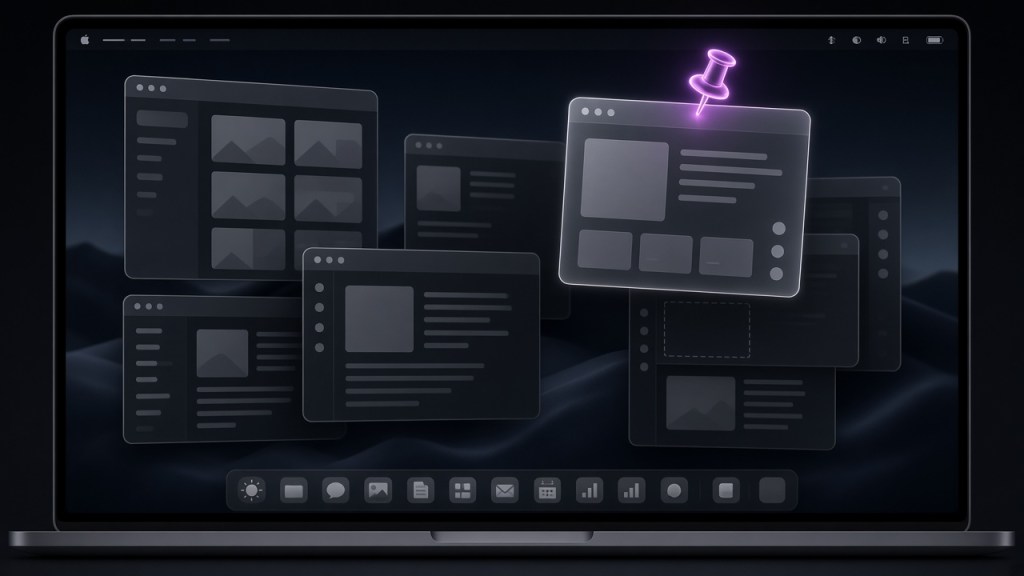
If you use a Mac all day, muscle memory takes over. You have a shortcut for spotlight search, a shortcut to cycle active windows, a shortcut to capture a selected portion of the screen directly to the clipboard, and three different shortcuts just to manage tabs in your terminal.
So imagine my genuine disbelief when I had a reference doc open that I needed to glance at while debugging, reached for the shortcut to keep that window pinned above my IDE, and discovered… nothing.
No shortcut. No menu item in the Window dropdown. No hidden modifier key.
On Windows, you can install Microsoft PowerToys and hit Win + Ctrl + T to pin anything. On Linux, virtually every window manager since the late 1990s has had “Always on Top” right inside the window context menu. But on macOS? Apple has decided that unless an application developer explicitly baked Picture-in-Picture or a floating inspector into their specific app, your windows obey a strict, unyielding stack: click window A, and window B is instantly swallowed into the abyss.
Third-party utilities exist, but they often require granting deep Accessibility permissions, running background daemons, or paying monthly subscription fees just to keep a tiny rectangle visible.
I didn’t want a bloated system hook. I just wanted a clean, focused, always-on-top window that I controlled.
So I decided to build one.
Phase 1: From JVM to the Web Stack
When you set out to build a desktop window on a Mac, you have a few choices.
My first quick experiment was in Kotlin using Java’s vintage Swing toolkit (JFrame):
val frame = JFrame("Always on Top Mac App")frame.setSize(400, 300)frame.defaultCloseOperation = JFrame.EXIT_ON_CLOSEframe.isAlwaysOnTop = trueframe.isVisible = true
It worked, but Swing on modern macOS looks and feels like software running inside a virtual time capsule from 2004. The window chrome is chunky, custom rendering is painful, and integrating modern web-based dashboards or notes is an uphill battle.
I wanted something lightweight, visually modern, and styled with modern CSS: a frosted glass dark theme, pixel-perfect macOS traffic light dots, and the ability to load external HTML or notes on the fly.
That led straight to TypeScript + Electron.
Phase 2: The Two Inherent Hurdles of macOS Windows
Setting alwaysOnTop: true in Electron is deceptively easy on paper:
const win = new BrowserWindow({ width: 800, height: 600, alwaysOnTop: true});
In practice, if you stop there on a Mac, you run into two immediate, frustrating UX walls:
1. The Virtual Desktop / Spaces Trap
On macOS, most power users work across multiple virtual desktops (“Spaces”) and full-screen apps. By default, when a standard window is set to “always on top”, it is only on top of the current Space. The moment you swipe four fingers across your trackpad to view another workspace or full-screen editor, your floating window gets left behind on Desktop 1.
The fix requires an explicit macOS-specific API call:
// Forces the window to float across all macOS spaces and full-screen appsmainWindow.setVisibleOnAllWorkspaces(true, { visibleOnFullScreen: true });
With that single line, the floating window travels with you seamlessly wherever you swipe.
2. The Transparent Window Problem
If you want an app to feel like an ambient utility rather than a giant desktop obstacle, it needs a transparent background so only the active card or widget floats above your work.
On macOS, you can’t just set transparent: true. If you leave the standard window frame intact, Chromium will either render a dull gray background or show visual clipping artifacts around the corners. To get true pixel-level transparency on Mac, you have to go frameless:
mainWindow = new BrowserWindow({ width: 800, height: 600, transparent: true, frame: false, hasShadow: false, alwaysOnTop: true, webPreferences: { nodeIntegration: true, contextIsolation: false }});
Phase 3: Rebuilding the Final Touch (Traffic Lights & Draggability)
Going frameless solves transparency, but it creates a new dilemma: how do you move or close the window?
Without a title bar, a window becomes an unmovable brick anchored to the middle of your screen.
To make it feel like a first-class citizen of macOS, I added two essential pieces:
1. CSS Window Dragging
In the HTML/CSS container, you simply apply a WebKit region rule:
.card { -webkit-app-region: drag; /* Lets you grab and drag the window anywhere */}
Anything inside that card can now be clicked and dragged across your display.
2. Custom macOS Traffic Lights (Red, Yellow, Green)
A frameless window strips away the iconic macOS traffic lights. Rather than relying on keyboard shortcuts alone, I recreated the native controls in the top-left in standard order: Red (Close), Yellow (Minimize), and Green (Zoom/Fullscreen).
<div class="mac-traffic-lights"> <button class="mac-dot mac-dot-red" id="btn-close"></button> <button class="mac-dot mac-dot-yellow" id="btn-minimize"></button> <button class="mac-dot mac-dot-green" id="btn-maximize"> <!-- Outward diagonal triangles matching macOS native hover state --> <svg viewBox="0 0 10 10" width="8" height="8"> <path d="M1 1L5.4 1L1 5.4Z M9 9L4.6 9L9 4.6Z" fill="#000000"/> </svg> </button></div>
Crucially, interactive controls inside a draggable card must have -webkit-app-region: no-drag;, otherwise mouse clicks will be interpreted as drags and buttons won’t fire.
And because web pages in Electron cannot directly tell the operating system kernel to minimize or resize a window, we bridge them using Electron’s Inter-Process Communication (IPC):
In the UI (index.html):
const { ipcRenderer } = require('electron');document.getElementById('btn-close').addEventListener('click', () => { ipcRenderer.send('window-close');});
In the backend (Main.ts):
import { ipcMain } from 'electron';ipcMain.on('window-close', () => { mainWindow?.close();});
The Result
What started as annoyance at an absent keyboard shortcut turned into a focused, distraction-free companion app:
- A floating dark-mode card with frosted glass blur (
backdrop-filter: blur(20px)). - Completely transparent background outside the card.
- True persistence across every macOS Space and full-screen application.
- Native-feel traffic light dots that behave just like regular Mac windows.
Sometimes the best developer tools are the ones born out of stubbornness. If an OS won’t give you a toggle for something simple, writing 50 lines of TypeScript is often faster—and significantly more rewarding—than hunting through third-party utility stores.


Leave a Reply